Overwatch 2: Unlocking Customization and Identity
Update Your Overwatch 2 Username: A Comprehensive Guide
Your Overwatch 2 in-game name is more than just a nickname; it's your online identity. But what happens when you want a change? This guide details how to update your BattleTag or in-game name across PC and console platforms.
Table of Contents
- Can I change my name in Overwatch 2?
- How to Change Your Name in Overwatch 2
- Changing Your Name on PC
- Changing Your Name on Xbox
- Changing Your Username on PlayStation
- Final Recommendations
Can I change my name in Overwatch 2?
Yes! Changing your name is straightforward, although the method varies depending on your platform and cross-play settings.
How to Change Your Name in Overwatch 2
Your in-game name is tied to your Battle.net account (BattleTag).
Key Considerations:
- Free Name Change: You get one free BattleTag change.
- Paid Name Changes: Subsequent changes incur a fee (approximately $10 USD; check your region's pricing in the Battle.net shop).
- Cross-Play: If cross-play is enabled, use the PC method regardless of your console. If disabled, use the console's settings.
Let's explore the specific methods:
Changing Your Name on PC (or Console with Cross-Play Enabled)
-
Visit the official Battle.net website and log in.
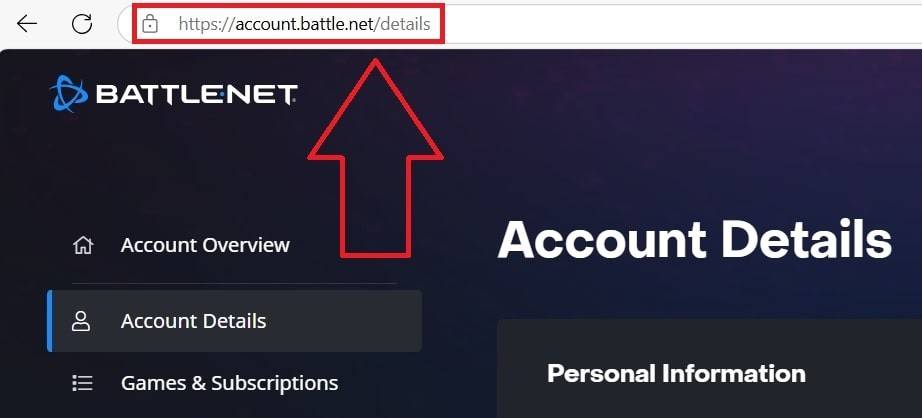 Image: ensigame.com
 -
Click your current username (top-right).
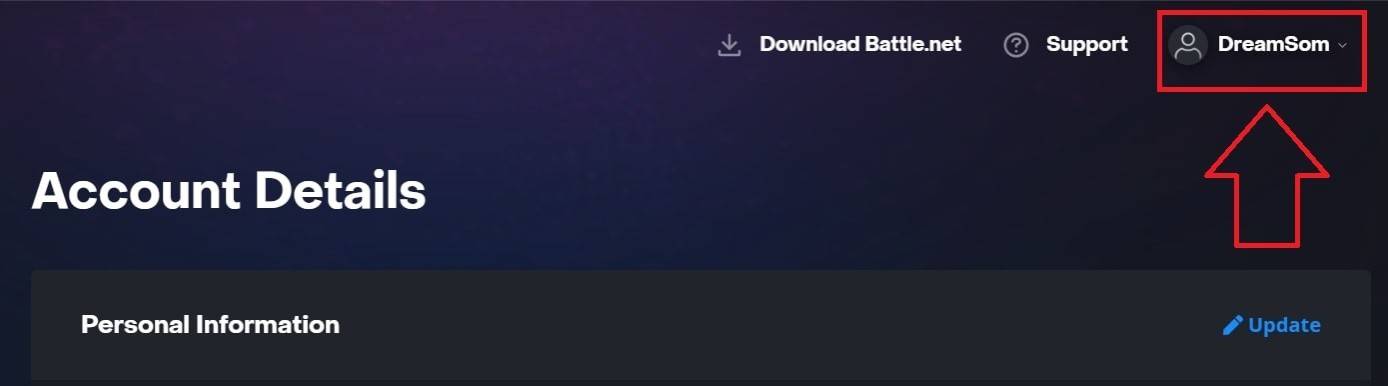 Image: ensigame.com
 -
Select "Account Settings," locate your BattleTag, and click the blue "Update" pencil icon.
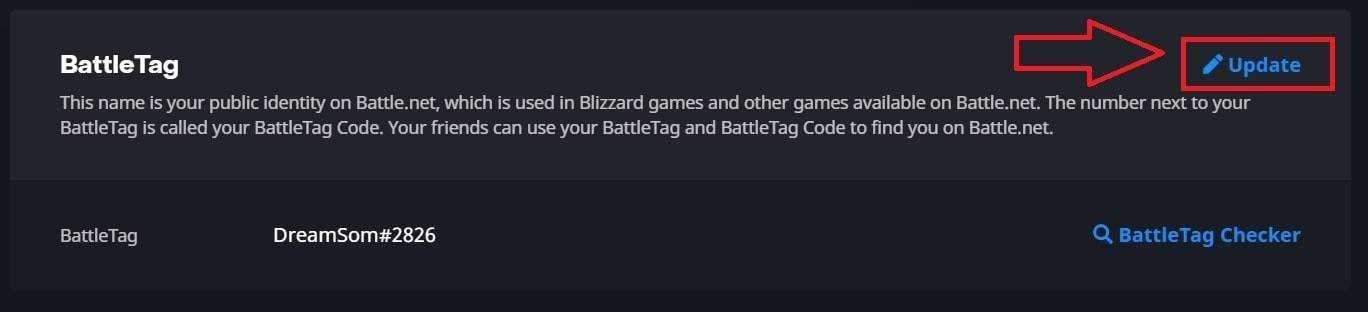 Image: ensigame.com
 -
Enter your new name (adhering to BattleTag naming policies).
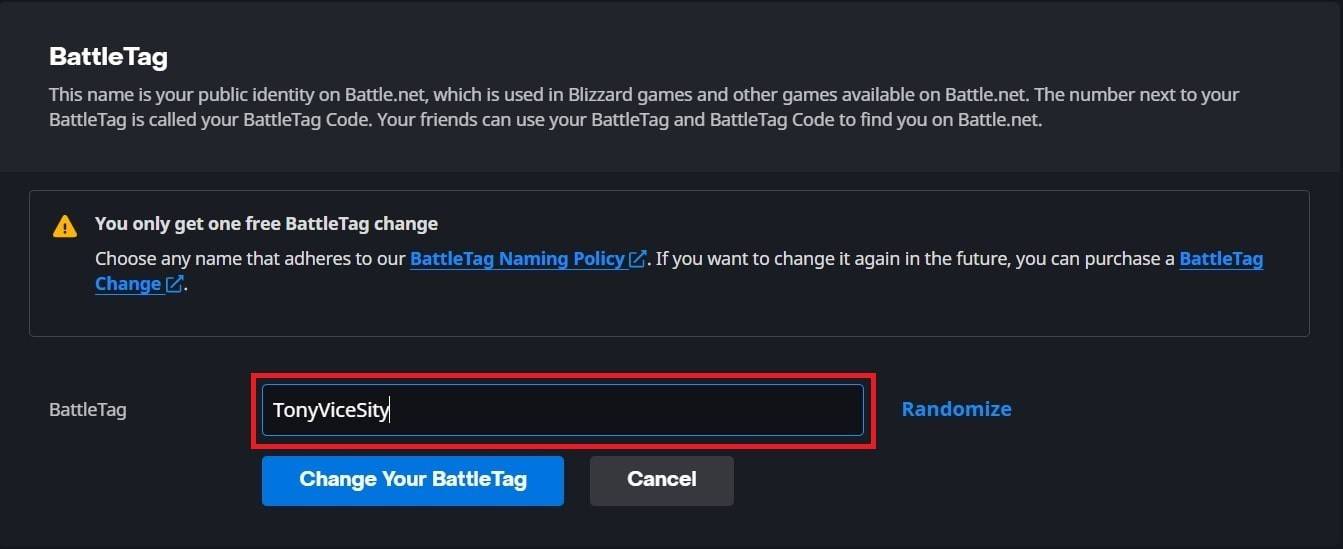 Image: ensigame.com
 -
Click "Change Your BattleTag."
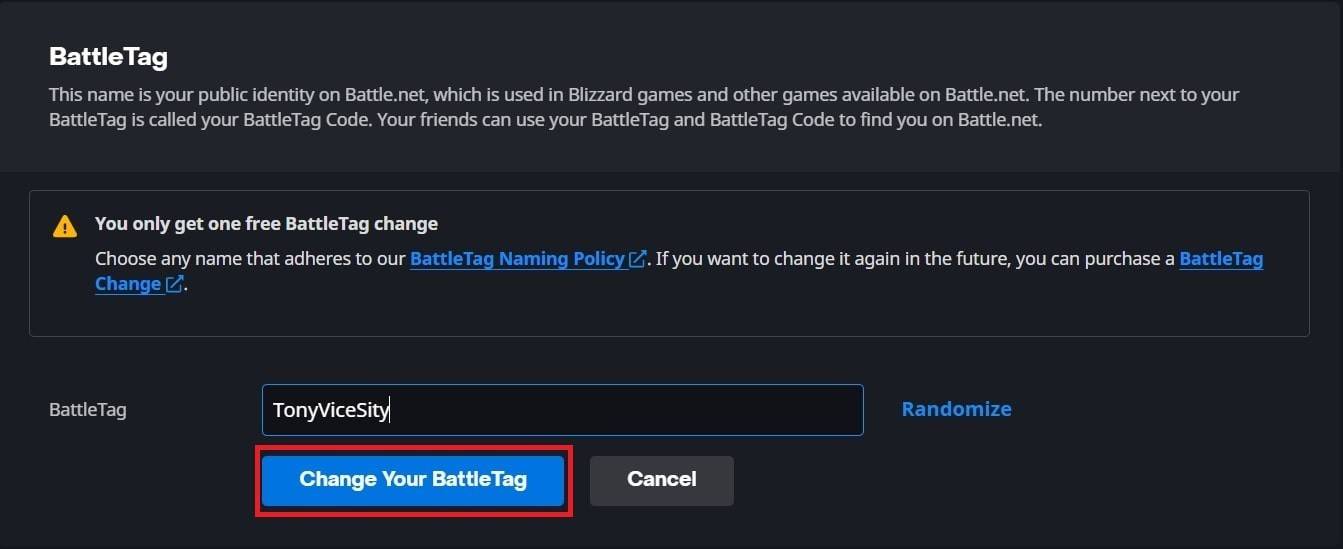 Image: ensigame.com
Note: Updates may take up to 24 hours to reflect.
Changing Your Name on Xbox (Cross-Play Disabled)
Your in-game name mirrors your Xbox Gamertag.
-
Press the Xbox button; navigate to "Profile & System," then your profile.
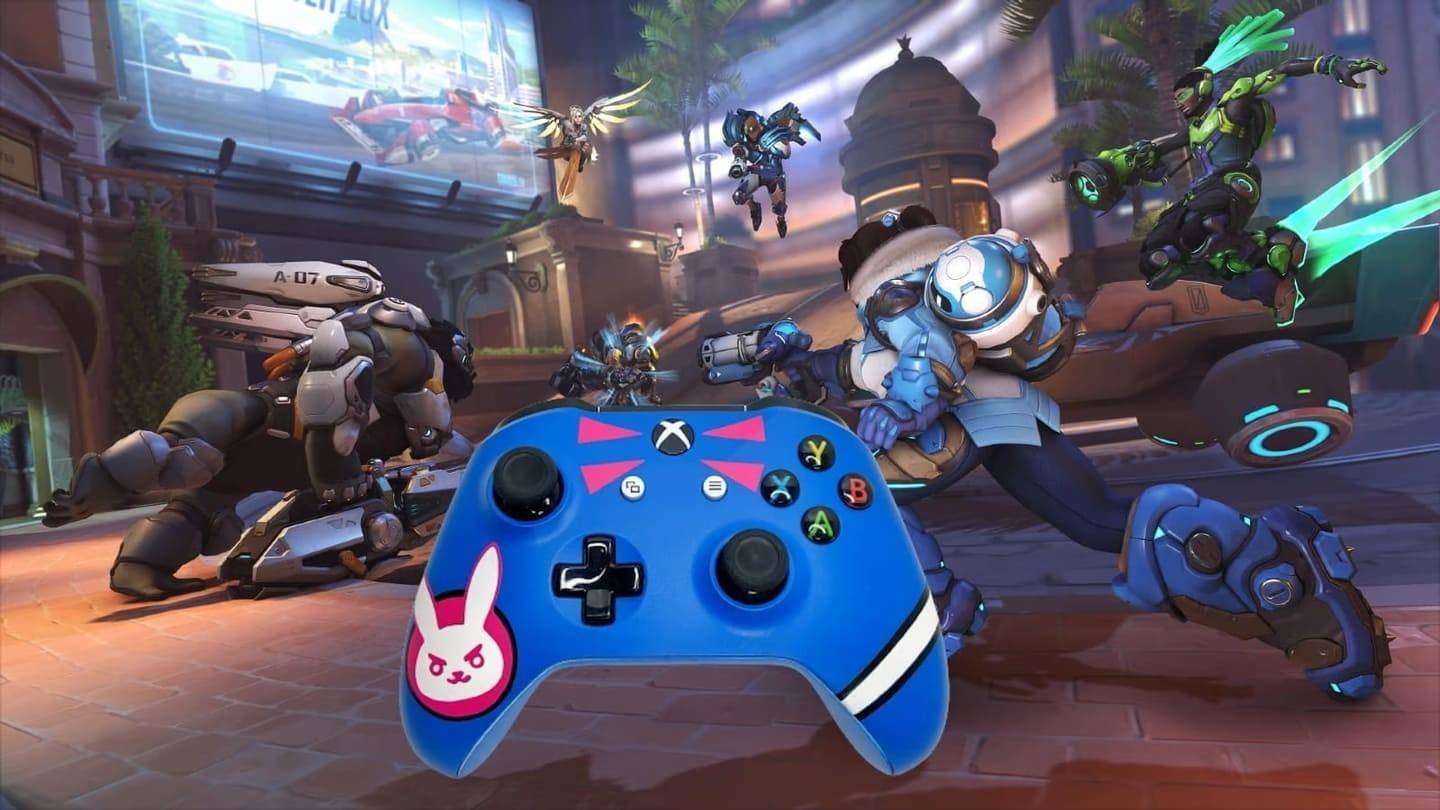 Image: dexerto.com
 -
Select "My Profile," then "Customize Profile."
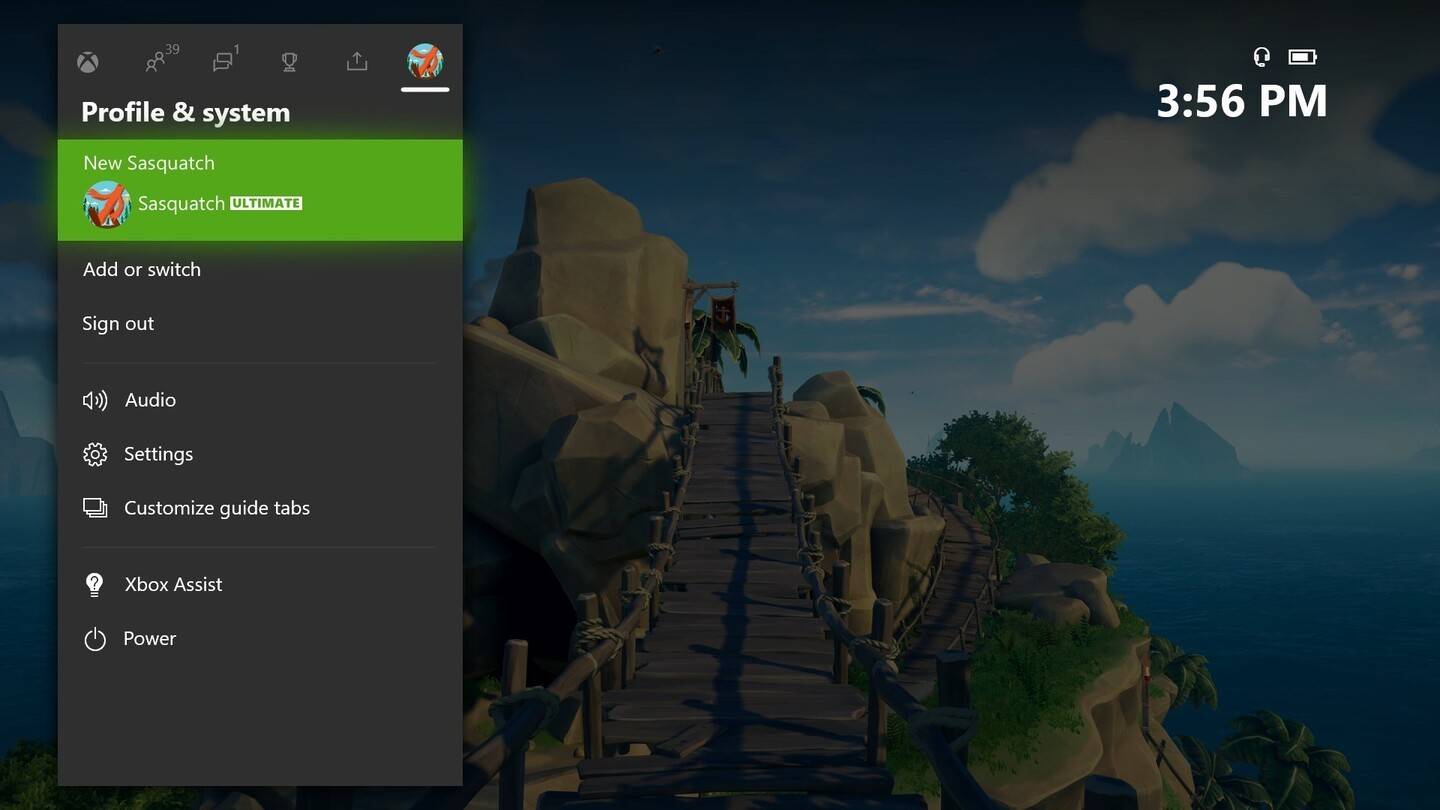 Image: news.xbox.com
 -
Click your Gamertag, enter the new name, and confirm.
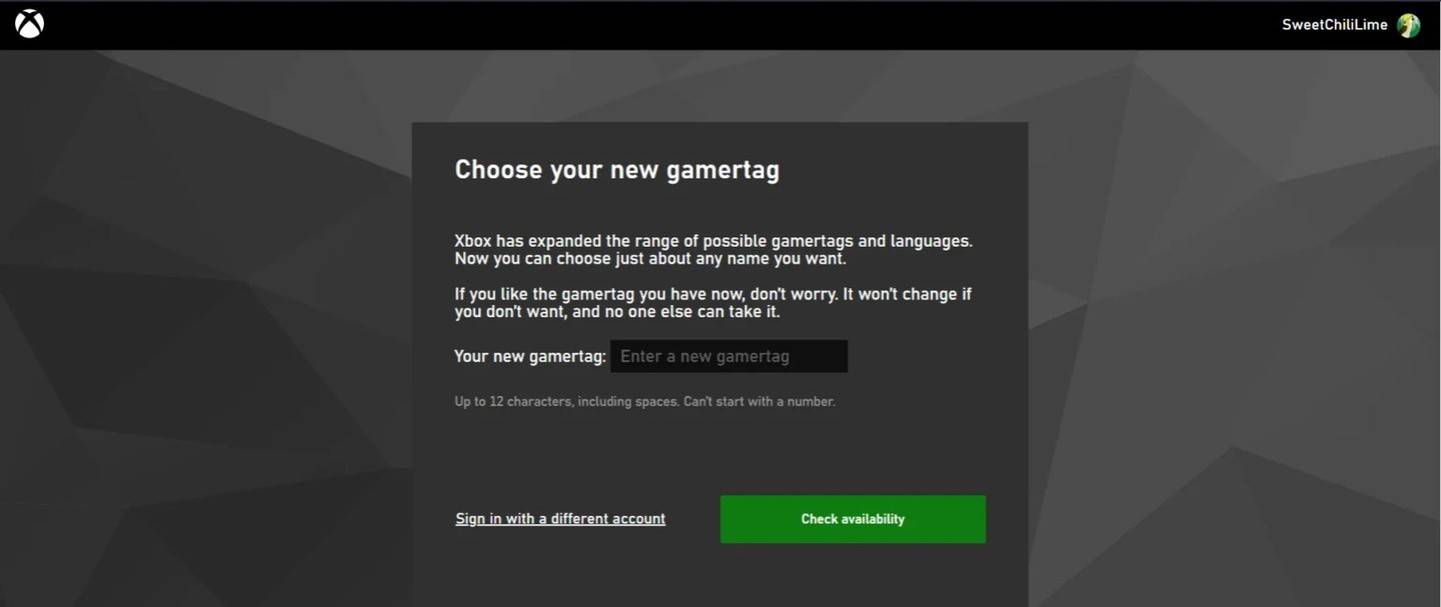 Image: androidauthority.com
Note: This name is only visible to other Xbox players with cross-play disabled.
Changing Your Username on PlayStation (Cross-Play Disabled)
Your in-game name is your PSN ID.
-
Access console settings; navigate to "Settings," "Users and Accounts," "Accounts," and "Profile."
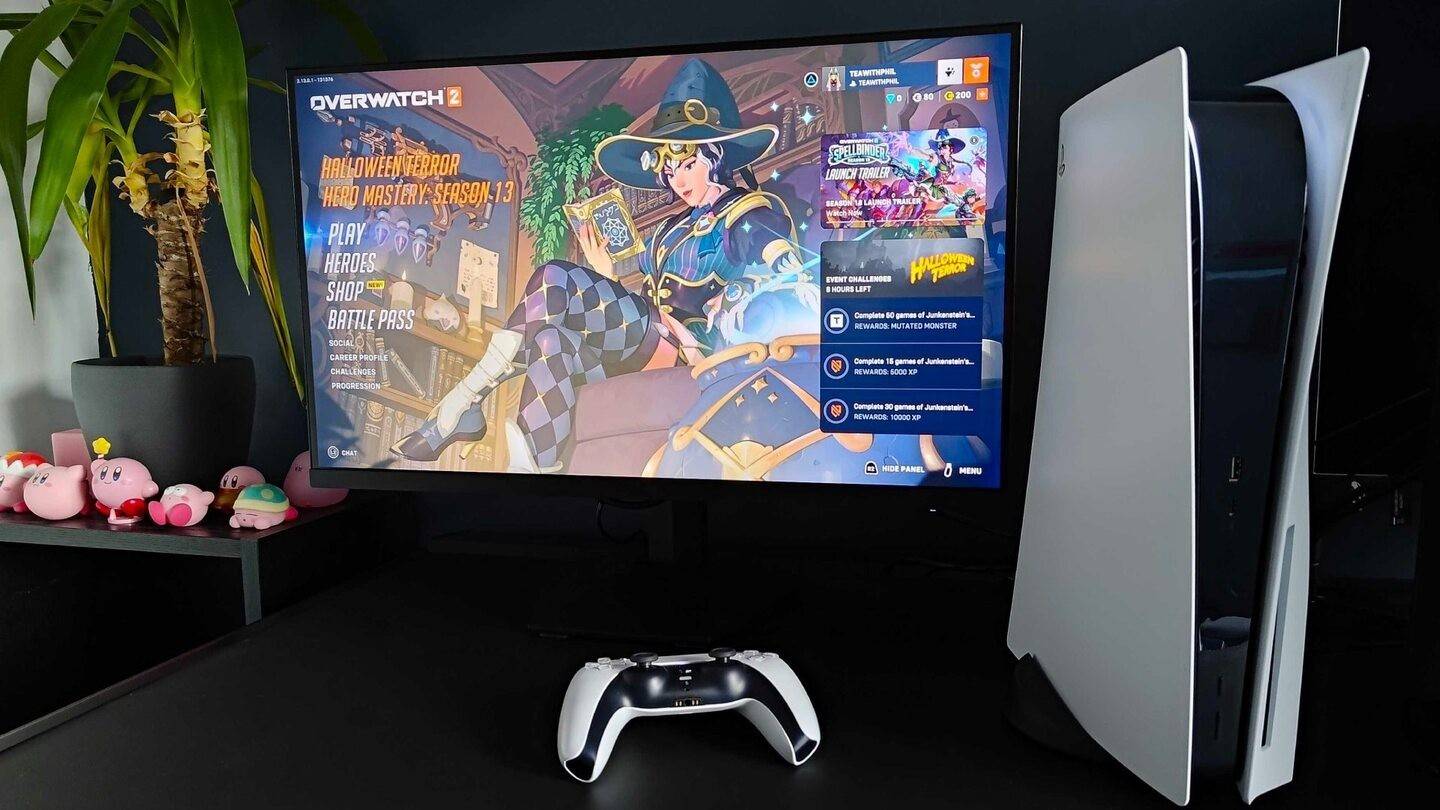 Image: inkl.com
 -
Find "Online ID," click "Change Online ID," enter your new name, and confirm.
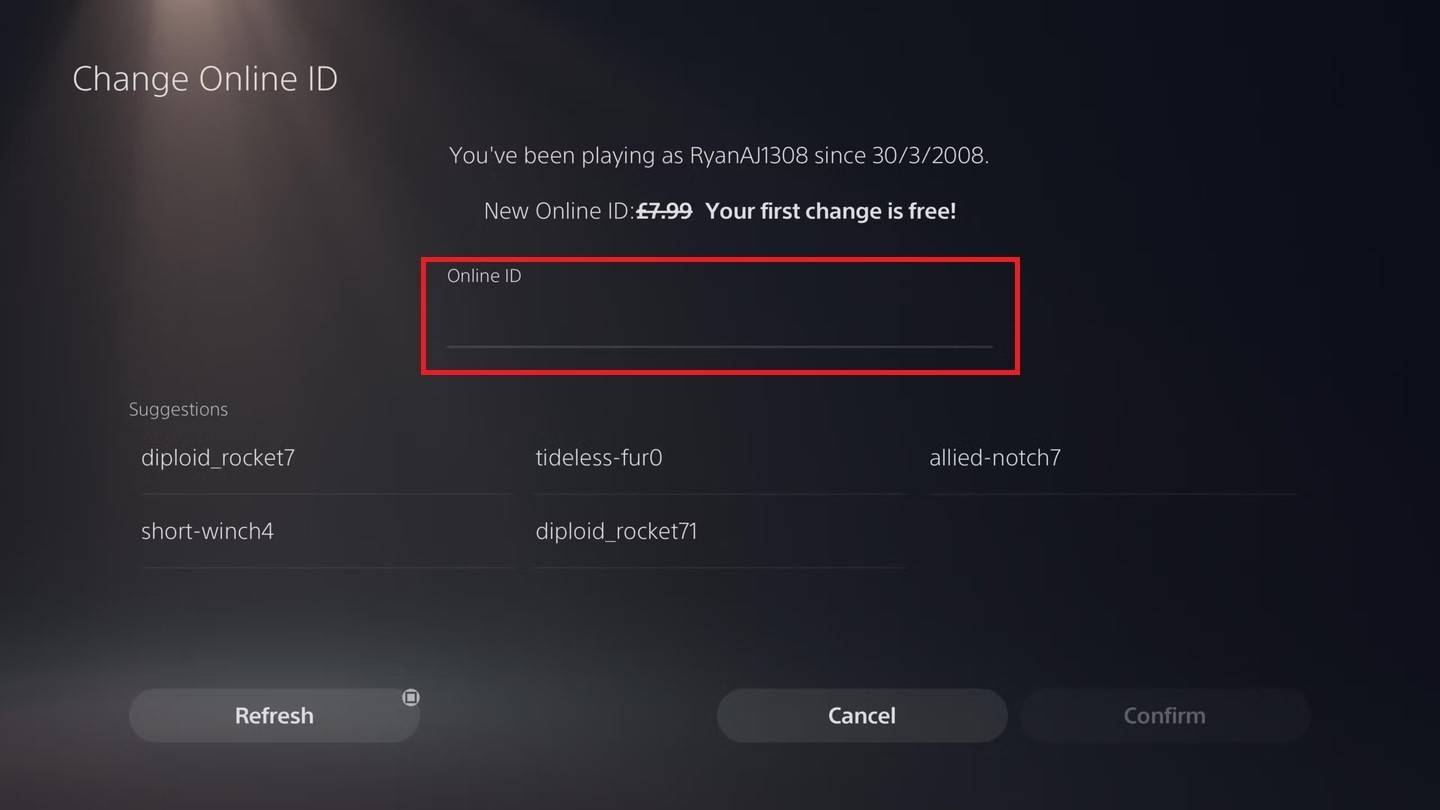 Image: androidauthority.com
Note: This name is only visible to other PlayStation players with cross-play disabled.
Final Recommendations
Before changing your name:
- Determine the correct method based on your platform and cross-play status.
- Remember the free name change limit and subsequent fees.
- Ensure sufficient funds in your Battle.net Wallet (if applicable).
By following these steps, you can seamlessly update your Overwatch 2 username and maintain a gaming identity that reflects your style.










![Roblox Forsaken Characters Tier List [UPDATED] (2025)](https://img.actcv.com/uploads/18/17380116246797f3e8a8a39.jpg)


- 1 Silent Hill 2 Remake Confirms Xbox, Switch Release in 2025 Feb 08,2025
- 2 Connect Asus ROG Ally to TV or Monitor: Easy Guide Apr 06,2025
- 3 Fix 'Can't Connect to Host' Error in Ready or Not: Quick Solutions Jun 13,2025
- 4 Dragon Soul Tier List: Ultimate Guide May 12,2025
- 5 The Best Free Comic Book Sites and Apps in 2025 Mar 18,2025
- 6 "Persona Games and Spin-Offs: Complete Chronological List" Apr 09,2025
- 7 How to Run JioHotstar on PC with BlueStacks Feb 28,2025
- 8 Assassin's Creed Shadows: Max Level and Rank Cap Revealed Mar 27,2025





-
Top Arcade Classics and New Hits
A total of 10
-
Addictive Arcade Games for Mobile
A total of 10
-
Android Apps for Video Content Creation
A total of 10